
From Reactive SIMOPS to Controlled Operations: What’s New in TenForce’s Permit to Work
SIMOPS incidents rarely happen because one job was wrongly assessed. They happen because multiple permits were assessed correctly…in isolation. Each job can be planned carefully, and each approval can be done properly but when work overlaps (in time, space, or hazard) the risk level changes. And in many setups, that interaction simply isn’t visible.
Our latest Permit to Work updates are built to help you manage that changing risk more clearly, without making the process heavier than it needs to be. They help you move from isolated permit control to coordinated, site-wide risk management, where overlapping work is visible, recurring work is easier to standardize, and teams can reuse what already works instead of starting from scratch every time.
TL:DR: What’s new at a glance
Here’s a quick overview of what’s new in the Permit to Work module:
- Job Templates with related permits – standardize recurring work, including hazards, controls, permits, and isolation plans
- Copy Job with related permits – reuse existing jobs (including associated permits and isolations) and adjust where needed
- Inherent hazards – automatically apply hazards that are always present for a job or location
- Mandatory controls – ensure critical safeguards are always in place for specific hazards and interactions
- Site Layout – see where work is happening across your site, and create safety zones
- Hazard-based SIMOPS – prevent unsafe combinations of work
- Hazards displayed in permits – see hazards directly alongside controls and PPE, so teams understand the risk without switching between screens
- Controls visible on the permit overview – give teams a clear view before work starts
- Atmospheric testing support – support confined space checks directly in permit printouts based on your own templates
- Last-Minute Risk Assessment (LMRA) – validate real conditions before work begins
Read on to find out more…
Start with a consistent way of setting up work
Before you can control overlapping work, you need to remove variability at the start.
In most plants, similar jobs are set up slightly differently each time. Hazards may be interpreted in their own way, and controls often depend on who’s creating the permit. Over time, that variation starts to introduce risk.
With Job Templates and Copy Job, teams no longer need to start from scratch.
- You can reuse proven setups, including related permits and, where relevant, isolation plans
- Recurring jobs follow the same structure every time
At the same time, you can lock in what should never change.
- Inherent hazards are applied automatically based on the job or location, so your team doesn’t need to keep selecting the same obvious risks each time
- Mandatory controls are added where required and can’t simply be removed
So instead of depending on who happens to create the permit, critical controls are already in place, and every job follows the same, proven starting point.
See what’s happening across your site
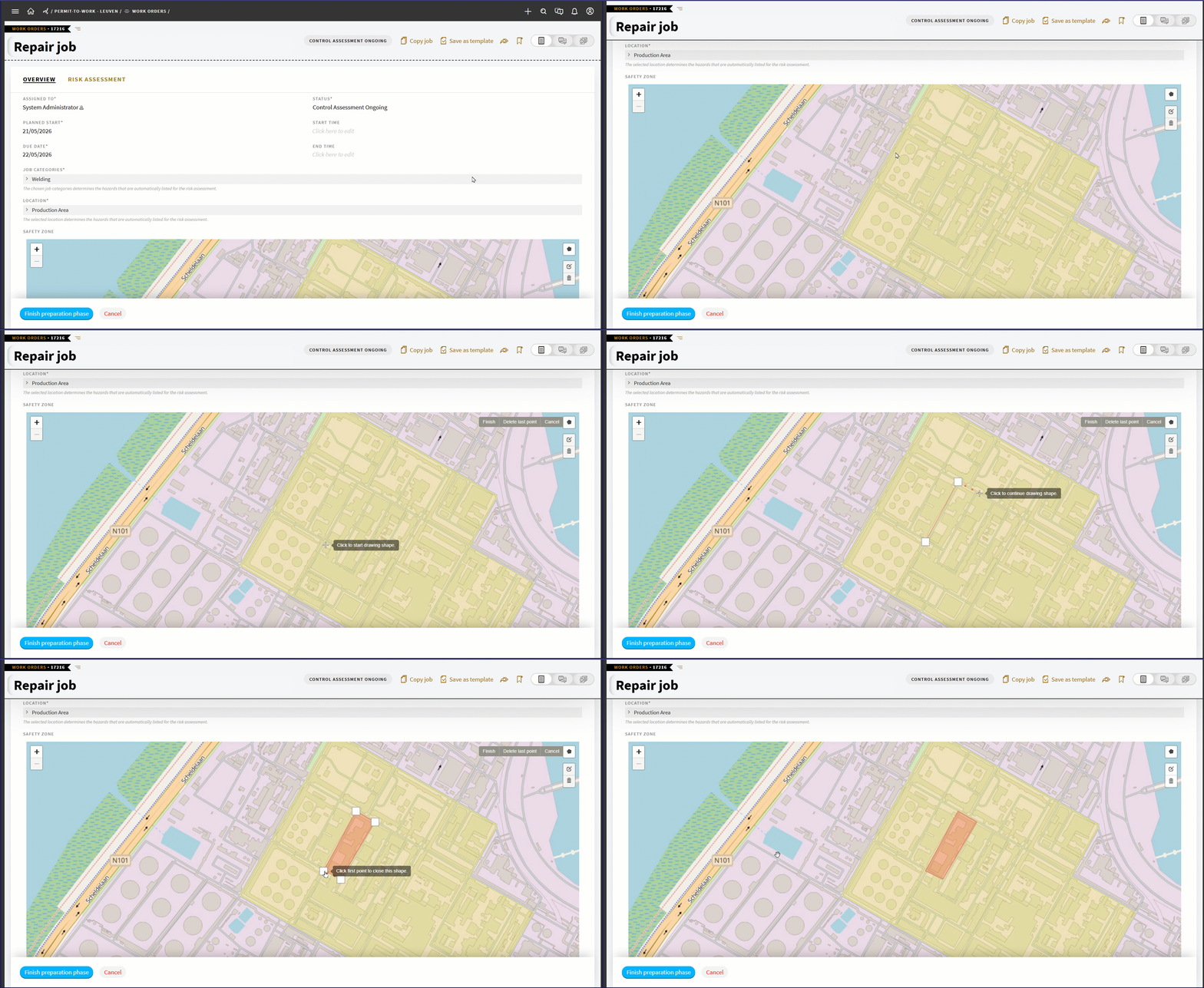
Once work is set up consistently, the next challenge is visibility, because you can’t manage overlapping work if you can’t see it.
With Site Layout, you move from lists of permits to a shared view of operations.
- Work orders appear where they’re happening on site
- Safety zones highlight high-risk areas
- Overlaps become visible immediately
This becomes especially valuable when multiple contractors are working in parallel, work is spread across a large site, or supervisors don’t have full visibility of each other’s activities.
But visibility alone doesn’t prevent incidents, because just seeing a conflict doesn’t mean it gets resolved.
Control how work interacts before it becomes a problem
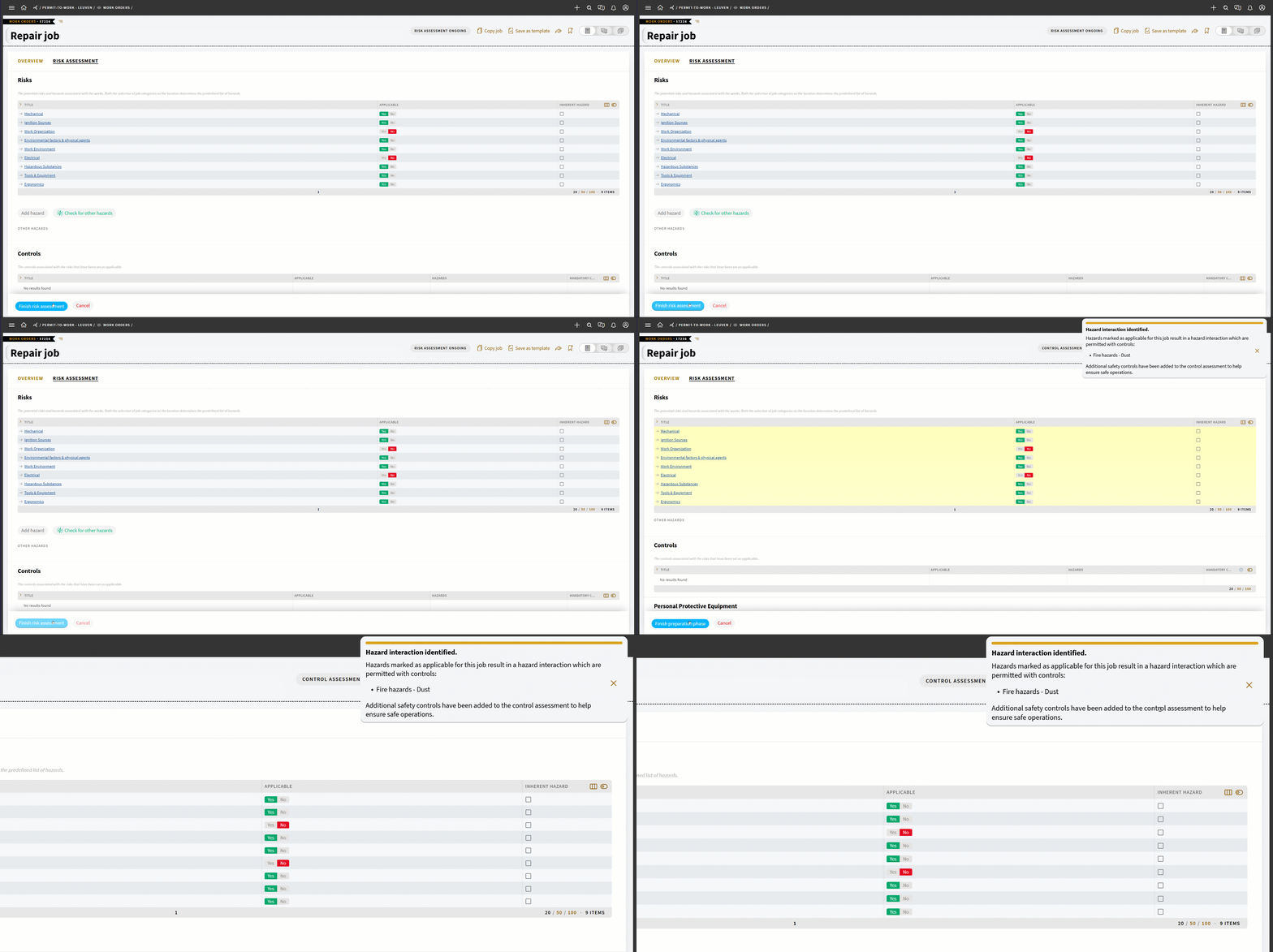
That’s where hazard-based SIMOPS comes in. Instead of reviewing permits one by one, you define ahead of time how hazards are allowed to interact across your site.
That means you decide:
- Which combinations are allowed (with controls)
- Which are not allowed at all
- Which require full exclusion of other work
From that point on, every job is checked automatically as it is prepared. And not once, but twice. Because we all know that in real operations, plans change.
The first check happens during planning.
As soon as a job is assessed, the system checks:
- Hazard combinations within the same job
- Other jobs planned in the same location
- Work happening at the same time
- Hazard combinations across all activities
There are three possible outcomes, depending on how the hazards interact:
- Permitted with controls
If two activities can happen together under certain conditions, those controls are added automatically, and your team simply confirms what applies. - Forbidden interaction
If two hazards should not occur together, the system flags it clearly. You see which jobs are involved and why they conflict, so you can adjust the plan before work begins. - Total exclusion
If one activity requires full control of the space, the system highlights that no parallel work should take place in that area.
At this stage, nothing is blocked, but you’re given time to adjust planning before the work is schedule to begin.
The second check takes place right before execution.
Right before work starts, the system checks against what’s actually happening on site. And now, it enforces the rules:
- If additional controls are required, they’re applied directly to the permit
- If a forbidden interaction still exists, the job cannot start
- If a total exclusion hazard is active, overlapping work is blocked entirely
No work moves forward until the conflict is resolved.
This two-step approach fits how your day actually unfolds. Plans shift, new work is added, and priorities change. By checking early and enforcing at the point of execution, you catch conflicts before they escalate, without holding up planning.
Confirm conditions are still safe in the field
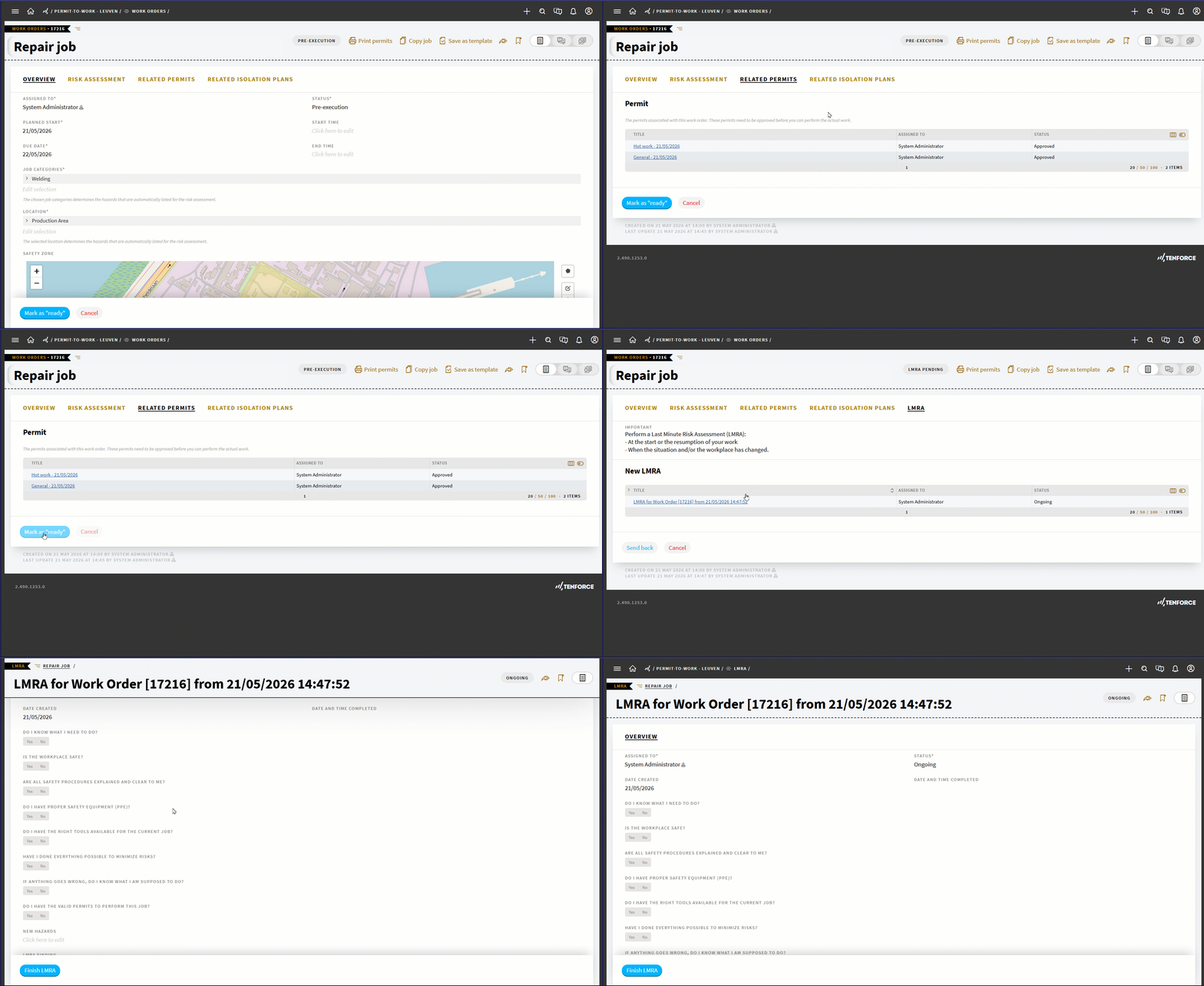
Even with strong planning, conditions can still change once work begins. That’s why the final check happens in the field, just before and during execution.
With Last-Minute Risk Assessment, workers confirm that conditions are still safe before starting work. If they identify a problem:
- the LMRA fails
- The necessary permits are suspended
- the job is pushed back for reassessment
This creates a direct feedback loop between the field and the back office.
At the same time, permits in TenForce have become easier to use in the field:
- Hazards are shown next to controls and PPE
- Required controls are visible from the start
- Atmospheric testing requirements are built in for confined space work
Instead of interpreting the permit, teams can act on it.
What this looks like in practice
Let’s say it’s a typical maintenance window, and you have three jobs planned in the same area:
- Welding on a pipe
- Cleaning a tank with flammable solvents
- Electrical maintenance
Each team sets up their work separately, but by using templates and previous jobs, the baseline is consistent, and the welding job already includes its inherent hazards and mandatory controls.
During planning the system flags the hot work + flammable atmosphere conflict, you immediately see the overlap with the cleaning activity in site layout, and the planner has the chance to adjust timing or location. If that’s missed, the second check blocks the job before execution. And in the field, LMRA gives the worker one final check before starting.
What this changes for you
You’re no longer relying on someone spotting the issue at the right moment. Instead:
- Work starts from a consistent baseline
- Critical hazards and controls are applied automatically
- Interactions are checked across all work
- Unsafe combinations are prevented, not just flagged
- Real conditions can still stop work before it begins
Together, these updates bring structure to how work is created, planned, and executed, so unsafe conditions don’t get the chance to develop.
Want to see how this works in practice? Watch our on-demand Permit to Work and LOTO webinar for a full walkthrough of the flow in TenForce.