Give Every User a More Useful Starting Point in TenForce
Think about who is using TenForce at your workplace, from contractors and supervisors to site managers and EHS leaders. It’s unlikely they’re all looking for the same thing.
Take the Permit to Work module as an example: a contractor may need a clear reminder of the steps to complete before work can begin, a supervisor may want a quick view of permits waiting for review or due to start that shift, and an EHS manager will want visibility into overdue permits or suspended work.
They’re all opening TenForce in the same place, but their priorities are different. Custom content widgets help you give each group a more relevant starting point from the moment they enter.
Show the right information from the start
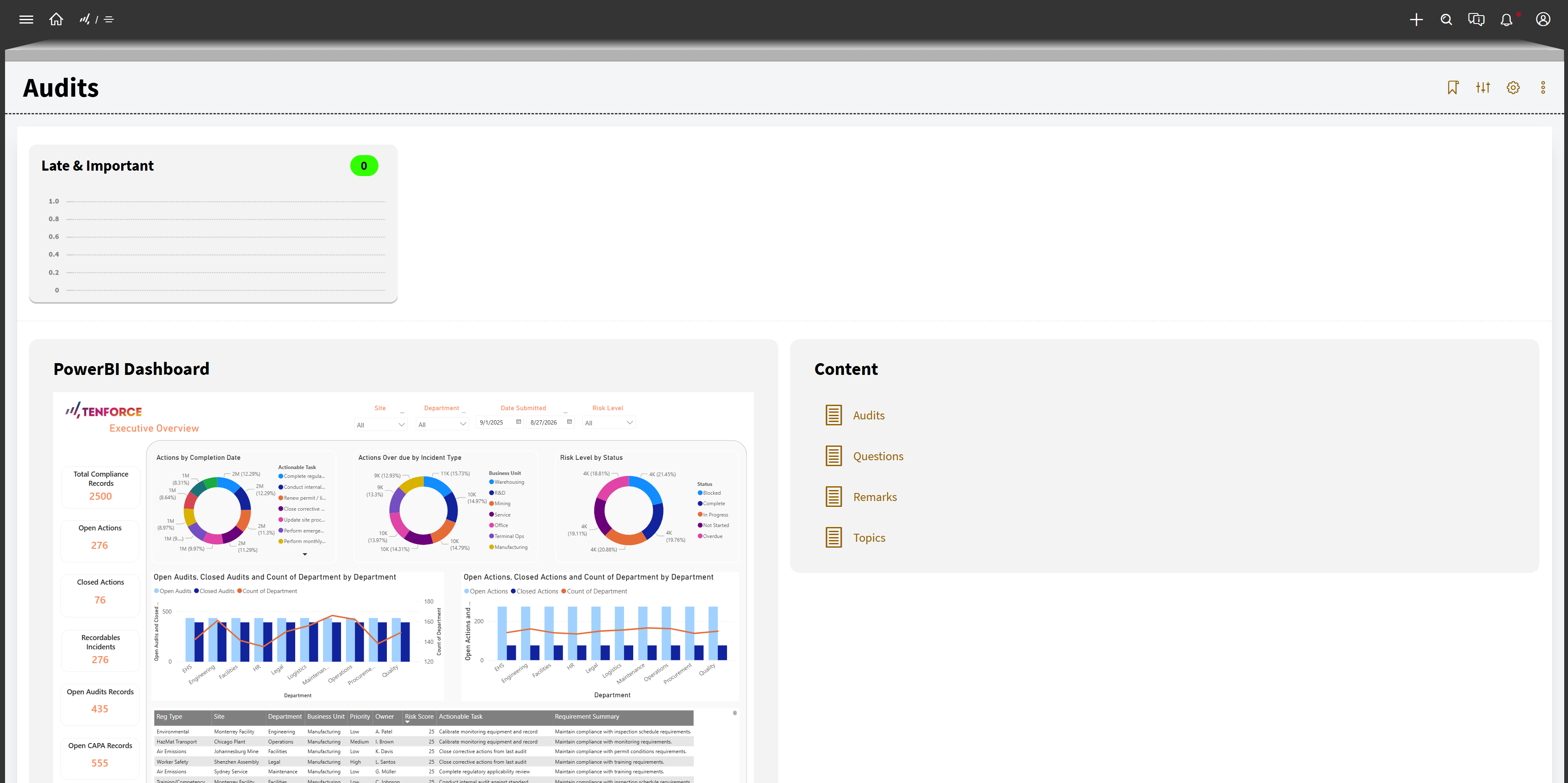
And it’s not just for Permit to Work. The same need appears across TenForce modules. For instance:
- In Incident Management, a supervisor may want to quickly report or follow up on an incident, while an EHS manager looks for trends, root causes, or overdue investigations.
- In Audits and Inspections, an auditor may need to see upcoming audits, while management looks for findings, gaps, and progress.
- In CAPA Management, a team lead may focus on their open actions, while an EHS manager needs visibility on bottlenecks and recurring issues.
Until now, those users all started from the same general page. With custom content widgets, you can tailor what different groups see when they enter a workspace. For instance, you can make sure your:
- Frontline users see clear instructions and next steps
- Supervisors see what needs attention or review
- Managers see performance indicators most relevant to them
That means less time spent remembering where a dashboard lives or switching between views, and a starting point that better matches the job at hand.
Reduce friction in day-to-day work
When people enter a TenForce workspace, they usually have a job in mind. They may be checking what still needs review, looking for the right dashboard, or trying to remember where a specific instruction sits. When that information isn’t readily available it adds friction to already busy workdays.
Custom content widgets help bring the most relevant information closer to the surface. It becomes easier to see what matters, pick up the right task, follow the process, close actions, and stay aligned with site priorities, with less back and forth along the way.
Turn your workspace into a practical hub
That might mean using the cover page to guide users with role-specific instructions, highlight a current safety campaign, flag an upcoming audit, or draw attention to a temporary site risk. You can surface dashboards tailored to specific responsibilities or create simple “start here” guidance for people who are new to a workspace.
Instead of designing one generic entry point for everyone, you can make the workspace cover page more useful for the different people relying on it.
A better starting point for every role
Often, the challenge is not that your teams need more information. They need the right information, in the right place, at the moment they open the workspace.
With custom content widgets, TenForce becomes easier to shape around the way people actually work, whether they’re reporting an incident, reviewing an audit, managing actions, or preparing permits. The result is less searching, clearer orientation, and a workspace that supports each role more naturally from the start.
How to set up custom content widgets
Setting up a custom content widget is quick and can be done directly from your workspace settings.
- Navigate to the workspace where you want to add the widget and open Workspace Settings.
- Open the Widgets tab. This is where all content widgets are managed.
- Under Content Widgets, click the action button to create a new widget. A new row will appear in the table.
- Define your widget by adding a Code (internal reference) and a Display Name (what users will see). Save your changes.
- Click Configure to open the editor and add your HTML content (e.g. a dashboard-style overview, instructions or reminders, site updates or safety messages). Save your configuration.
- Assign visibility by selecting the user groups that should see this widget on the workspace cover page.
What to keep in mind
- Widgets are configured per workspace
- Visibility is managed via user groups in that workspace
- HTML content is sanitized for security
- Widgets are interactive
- Internal links are not yet supported
Tip: start simple
A good first widget is something immediately useful, like:
- “Start here” guidance for contractors
- A short checklist for supervisors
- A focused dashboard for EHS managers
Want to make your TenForce workspace more useful for different roles? Contact your TenForce contact person to learn more about setting up custom content widgets.